Roadtrip — Pics Under the Trees

Had a good trip over to Arkansas Saturday and back this morning.  Good weather and a great drive each way.

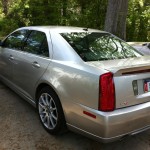
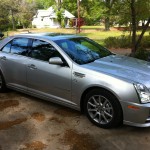
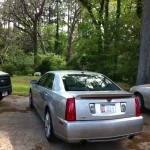
Shots of my 2008 STS-V under the trees in Arkansas.  Needs a thorough cleaning but I always like photos with greenery nearby and the trees overhead reflecting in the paint. Click on the thumbnails to start slide-show mode.

My Dad’s Lincoln Towncar and Ford Pickup have cameos.


Displaying IAT2: DashCommand, Innovate OT-2, Cadillac? #Motorama

The search for an easy way of displaying IAT2 — which is incoming air temperature after the supercharger & intercooler and as the air enters the manifold — which is the holy grail of telling how things are going for supercharged cars.

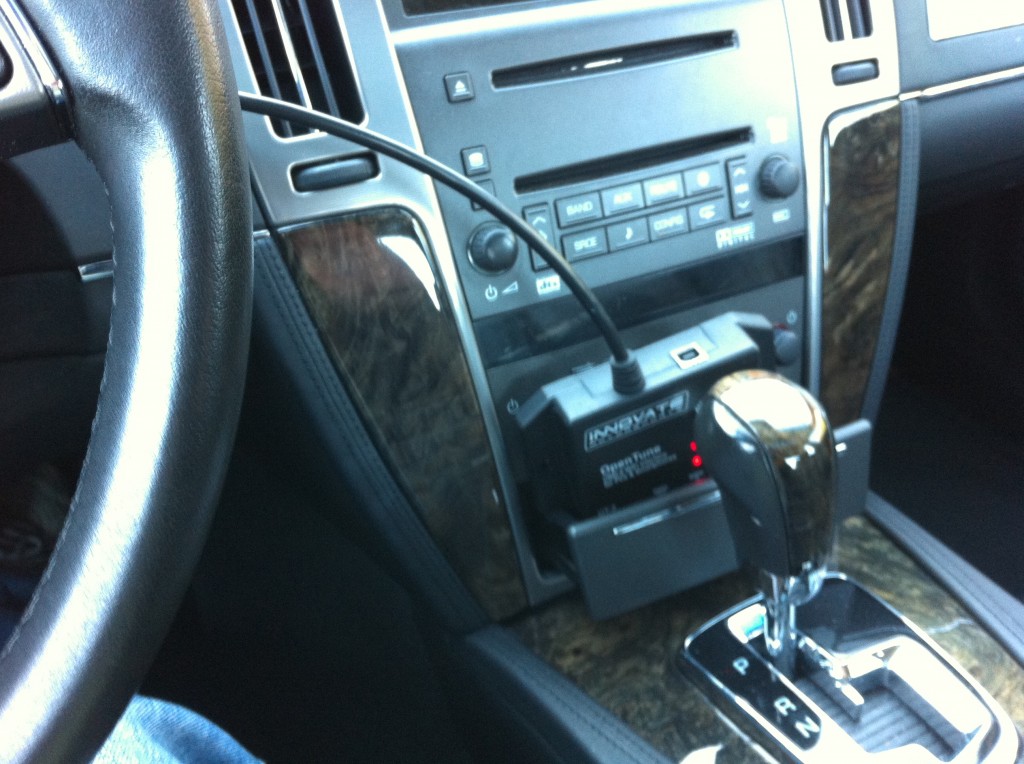
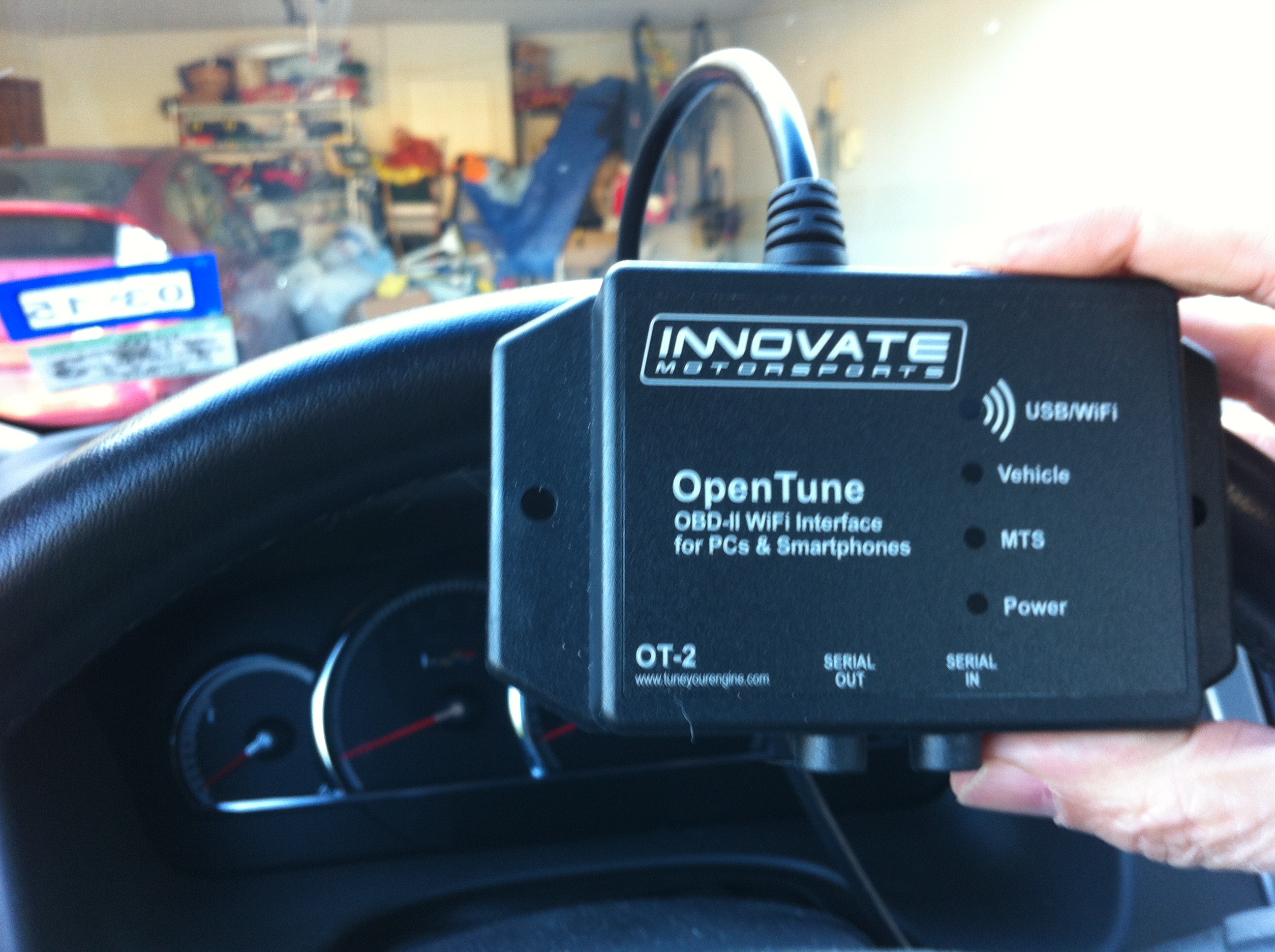
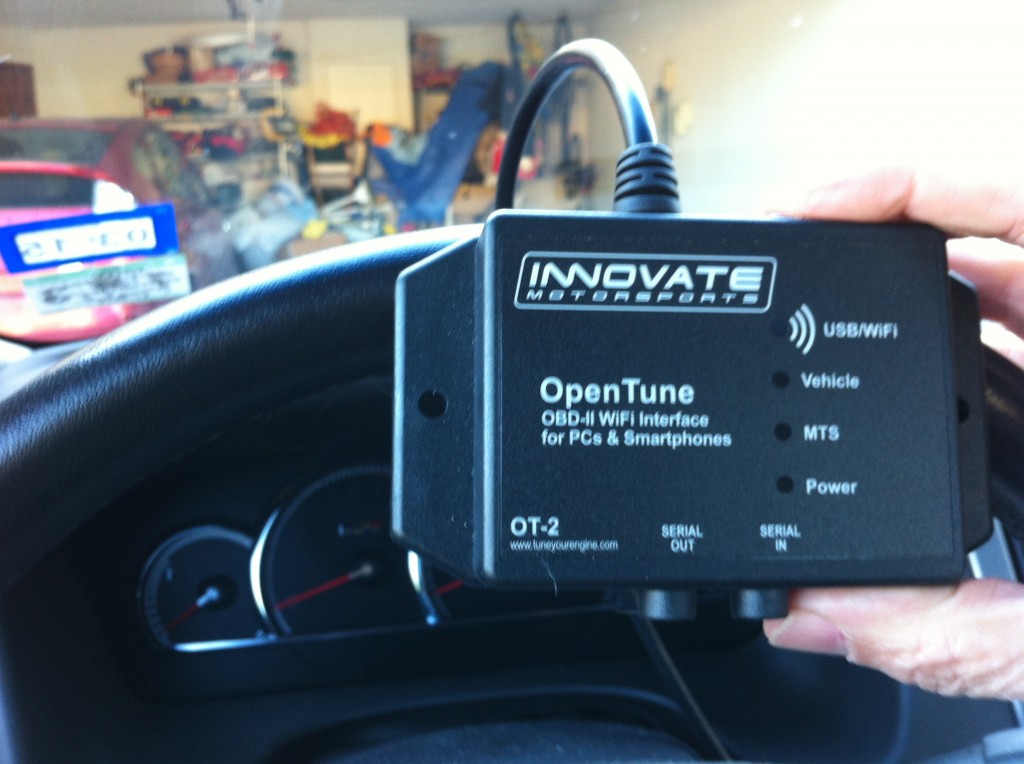
Some time ago I picked up an Innovate OT-2 OBD-II module.  This device connects to the OBD-II diagnostic port and creates a wifi hotpoint to share the OBD II info from the car to a connected wifi device.
IMG_0529

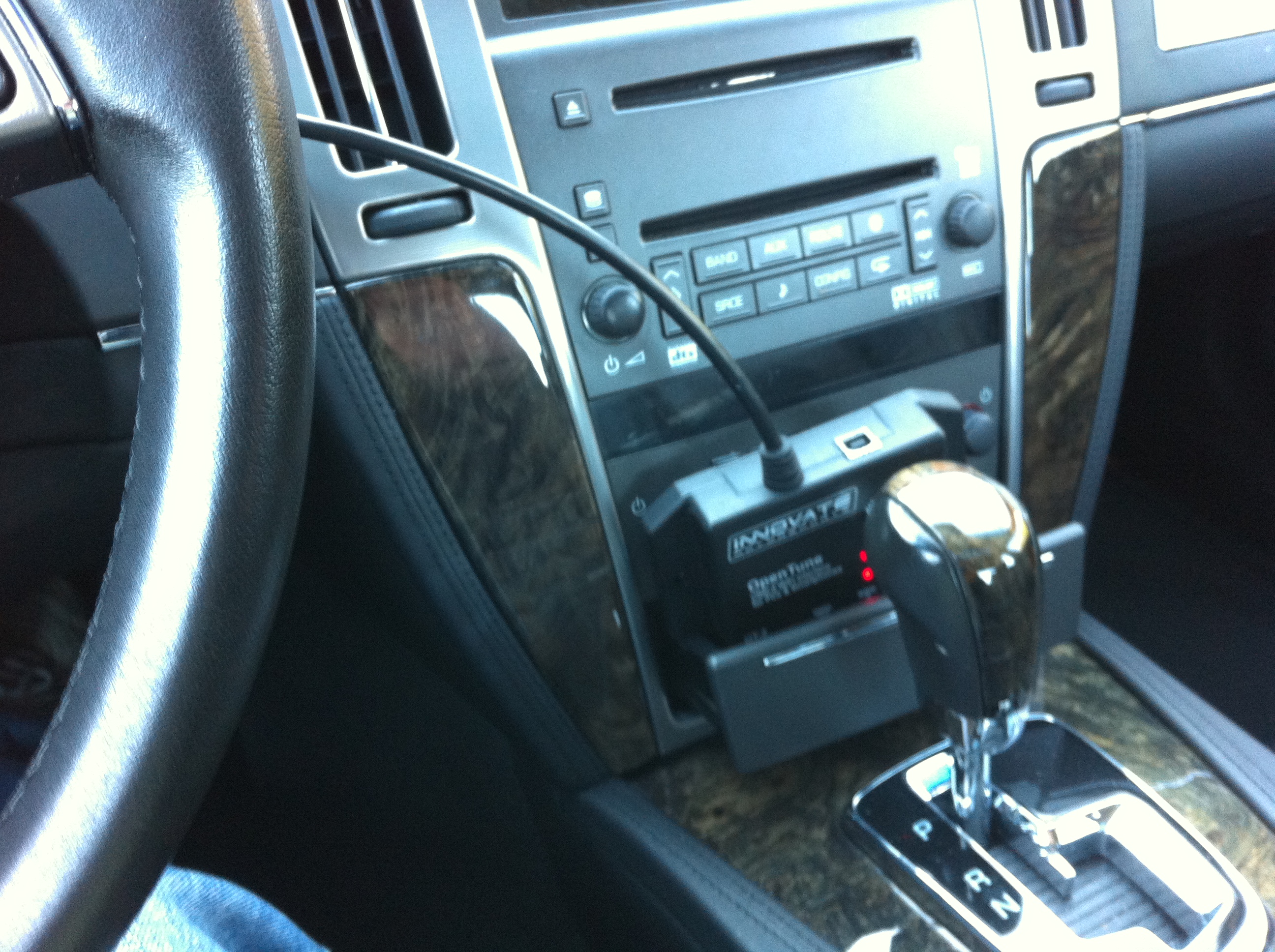
Close-up of the OT-2 Module

IMG_0530

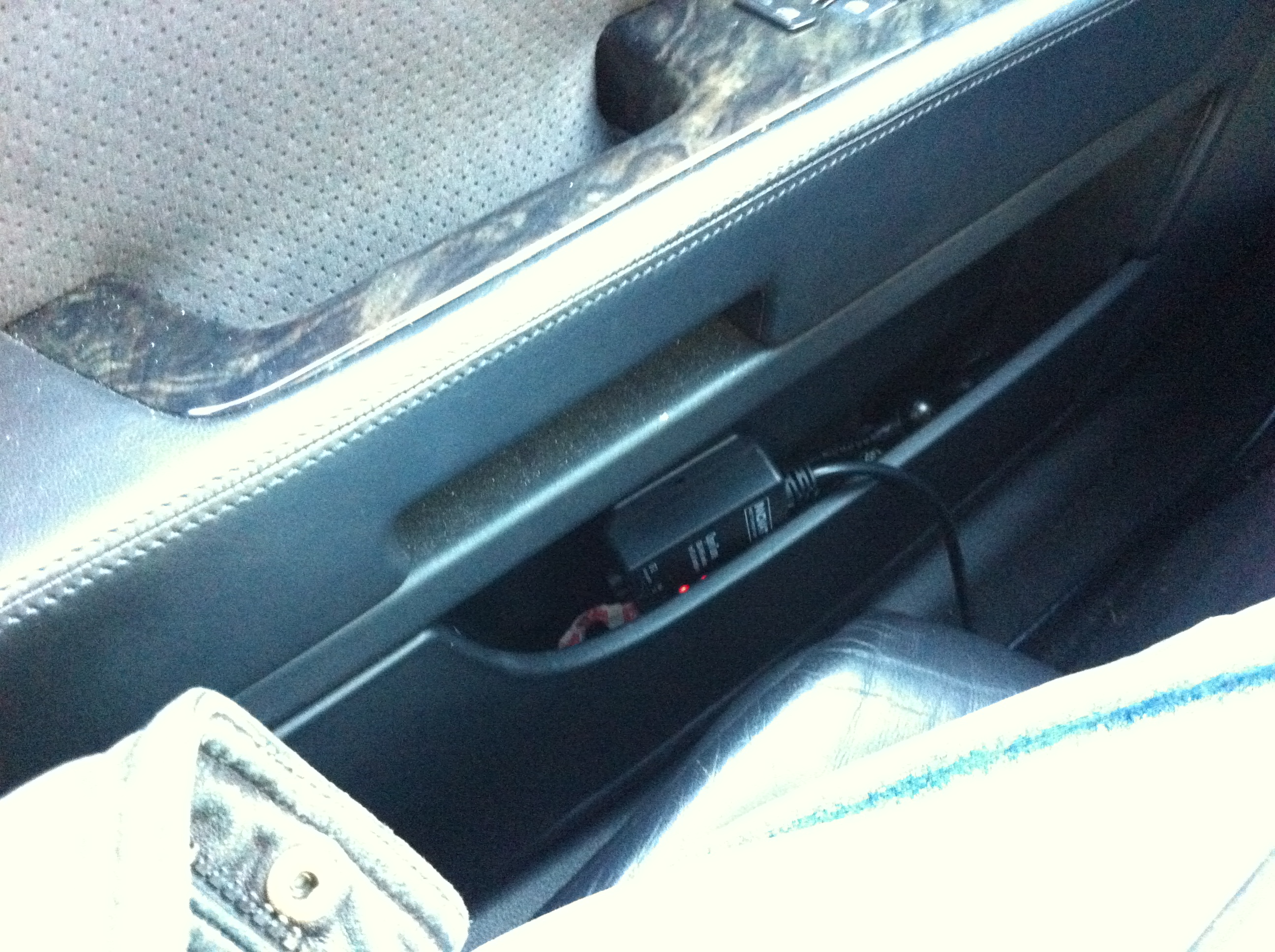
OT-2 tucked into the auxiliary power compartment (nee ash tray slot)
IMG_0531

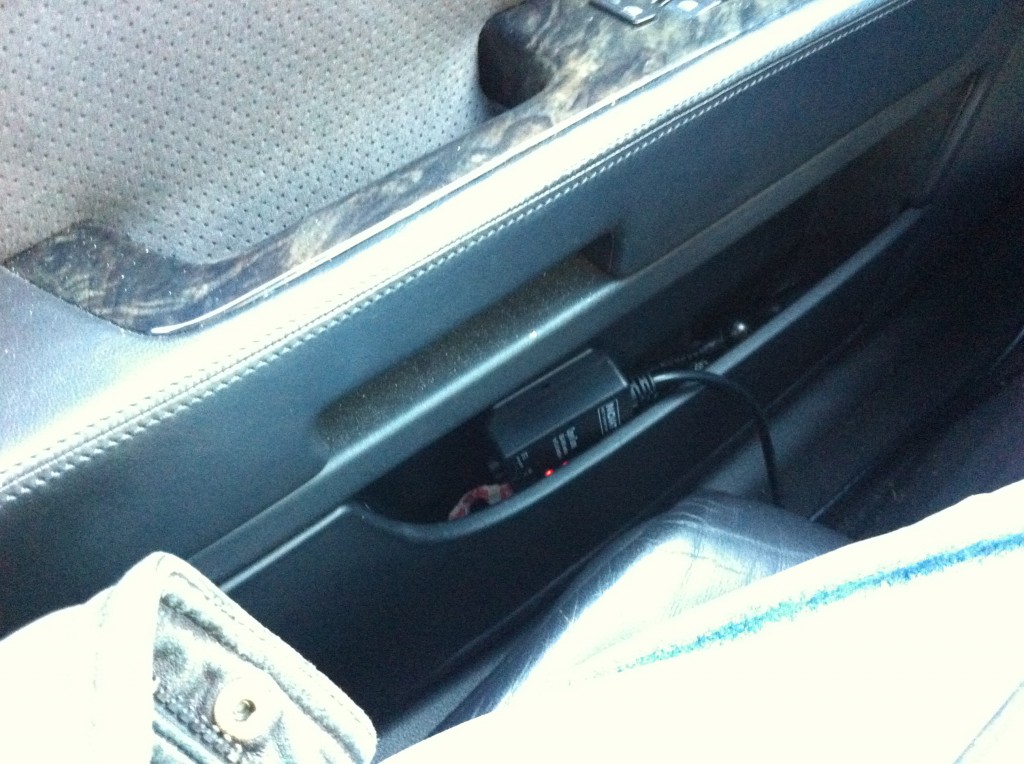
OT-2 tucked into the door compartment

 Okay, Hardware, but what software for displaying IAT2?

I previously had used the software with my IPAD and Logworks, a free software that comes from Innovate Motorsports.  This all worked well enough to provide a virtual dash with various gauges.  I was not able however to tease it to display my IAT2.

I can display IAT2 with the HPTuners software, as we have seen.  However, that requires a windows laptop and HPtuners plug.  The desire is to display it on my IPAD, which would be easier to have along for drives or roadtrips.

DashCommand for displaying IAT2?

DashCommand by Palmer Performance is configurable software to display a virtual dash on a variety of platforms.  When I was experimenting with my OT-2 previously it was not supported by DashCommand.  Now I find that it is.

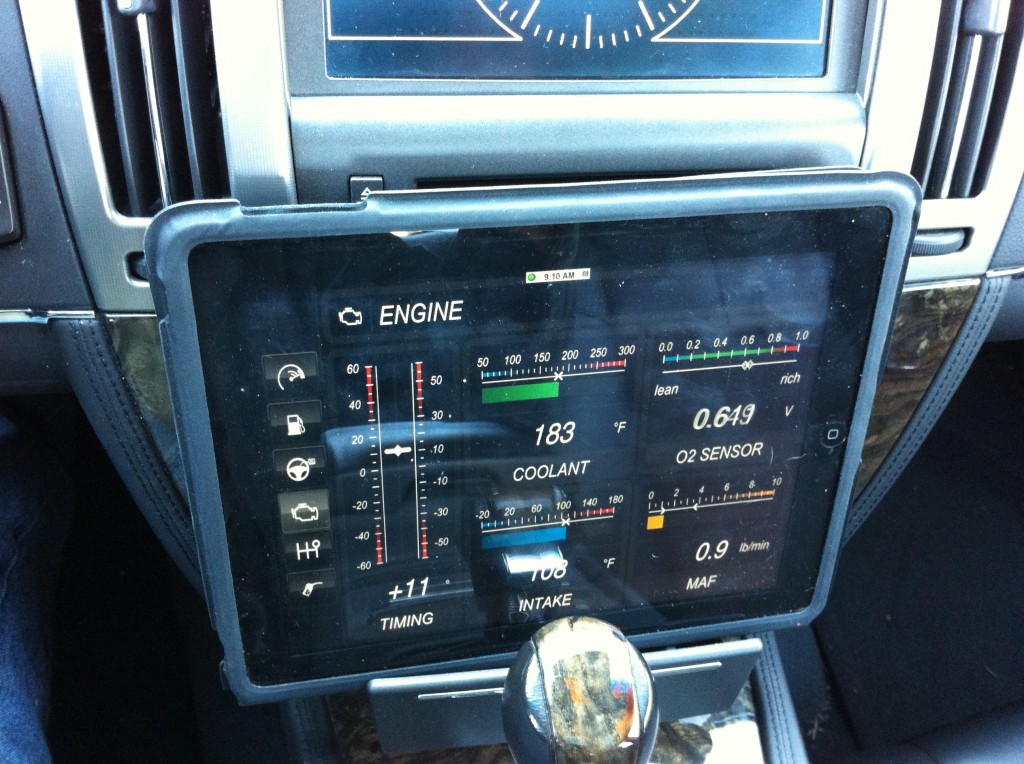
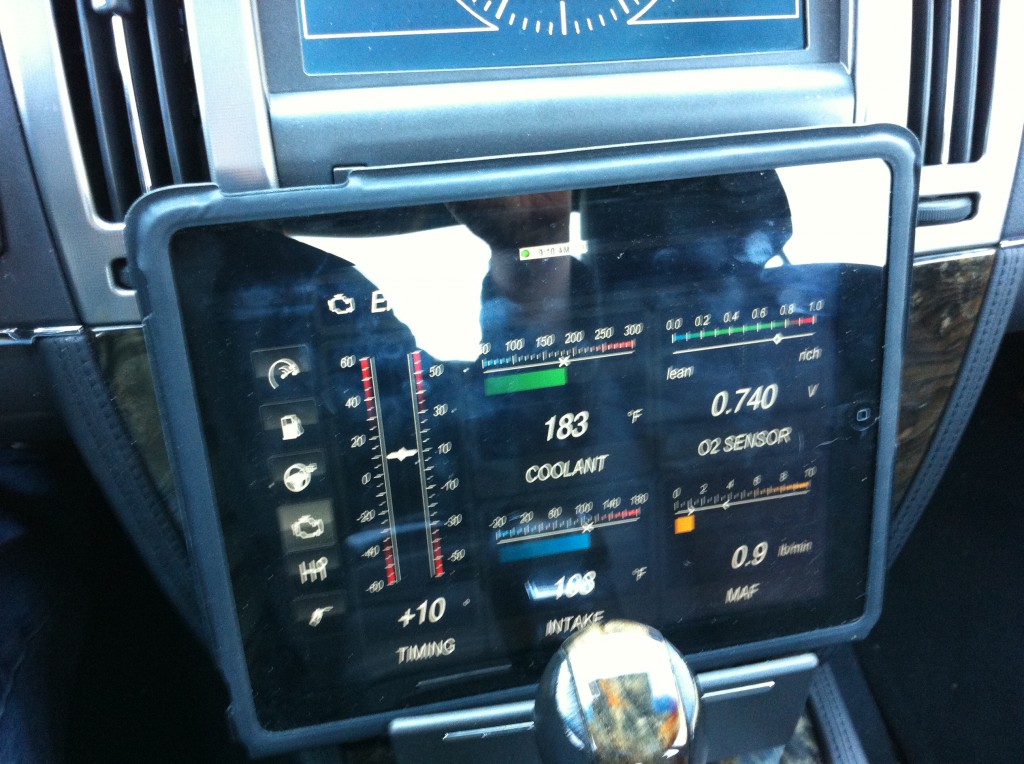
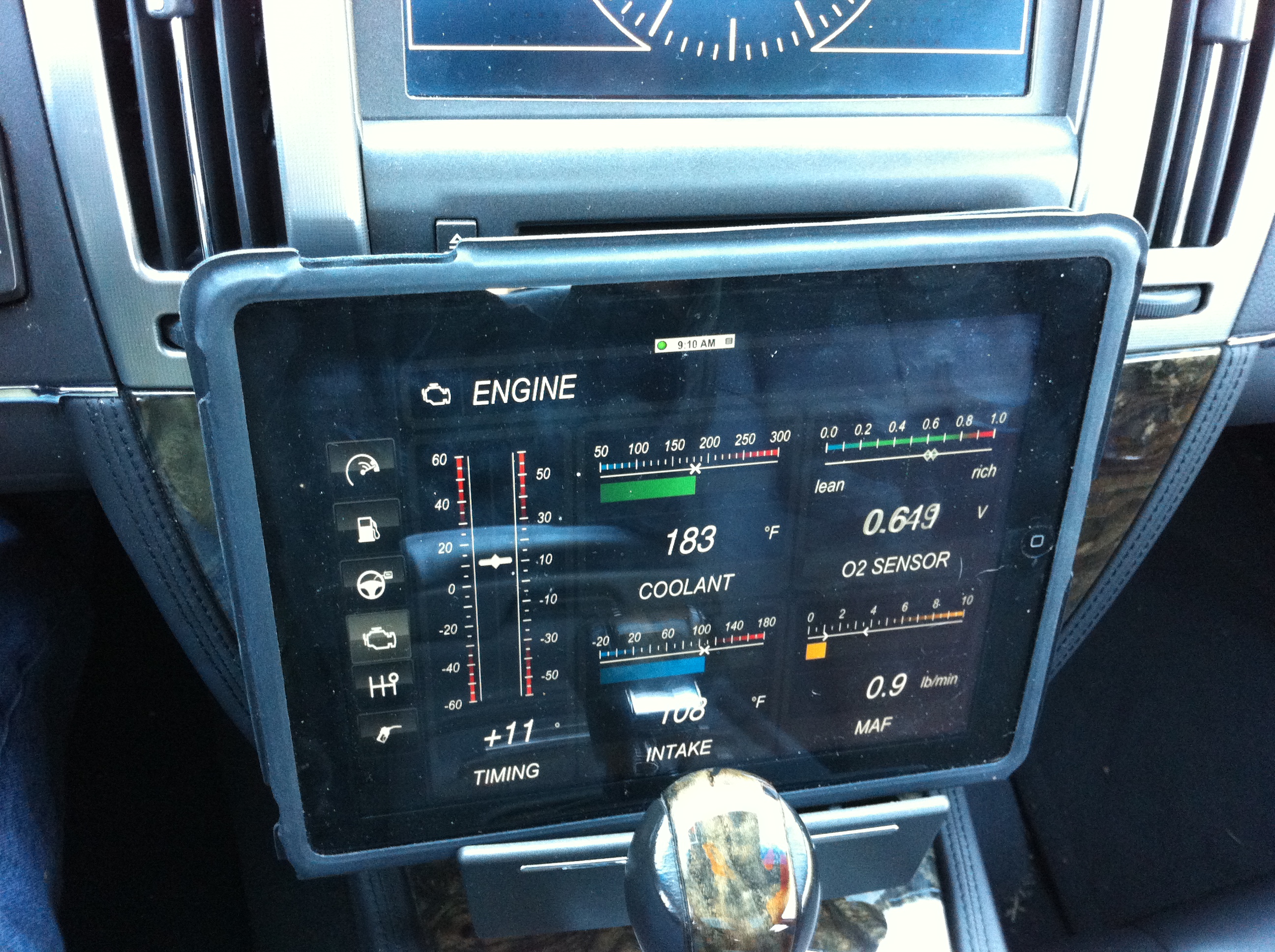
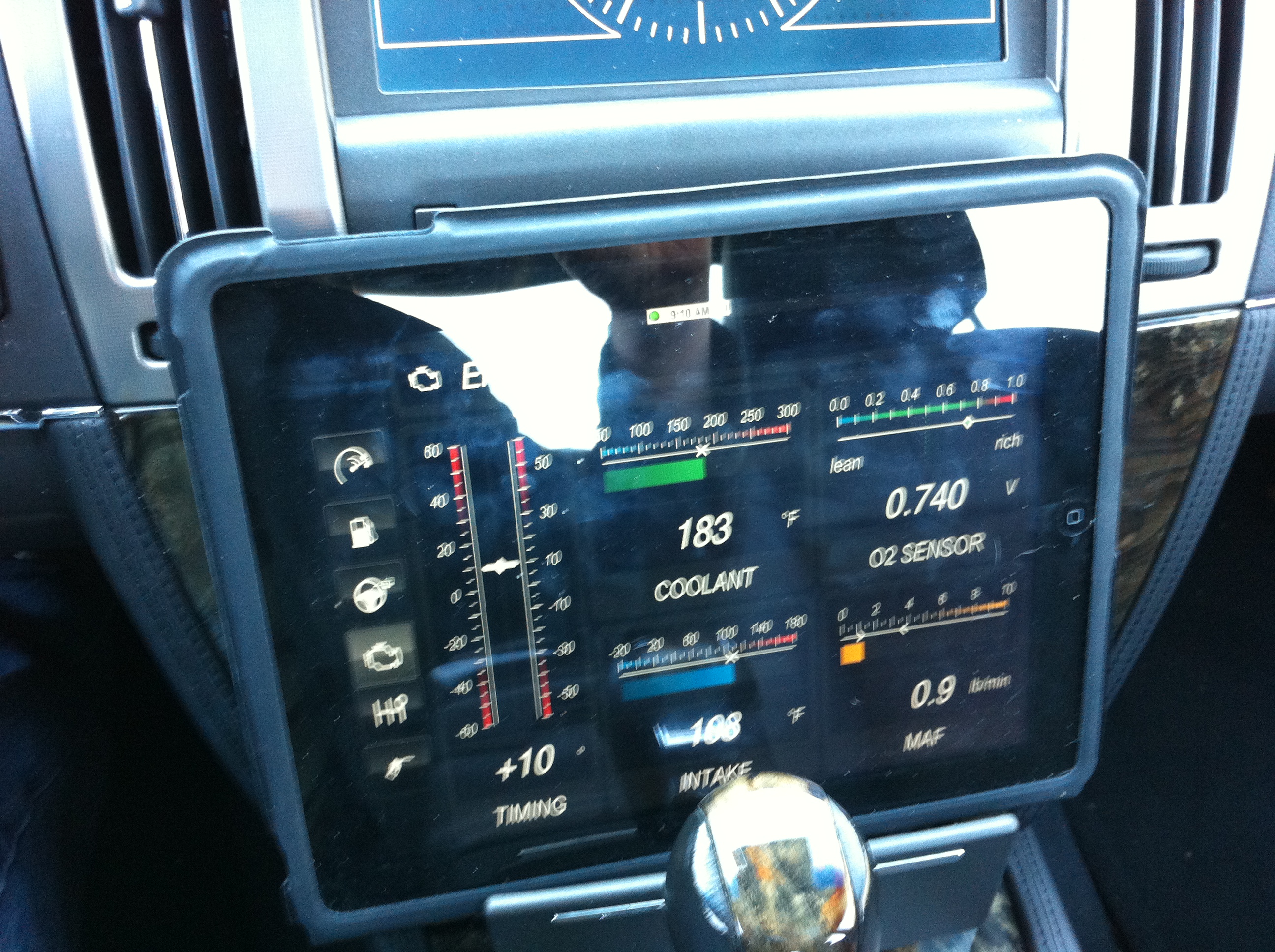
Here are some default screen from DashCommand on my IPAD1 connected to the STS-V via OT-2:
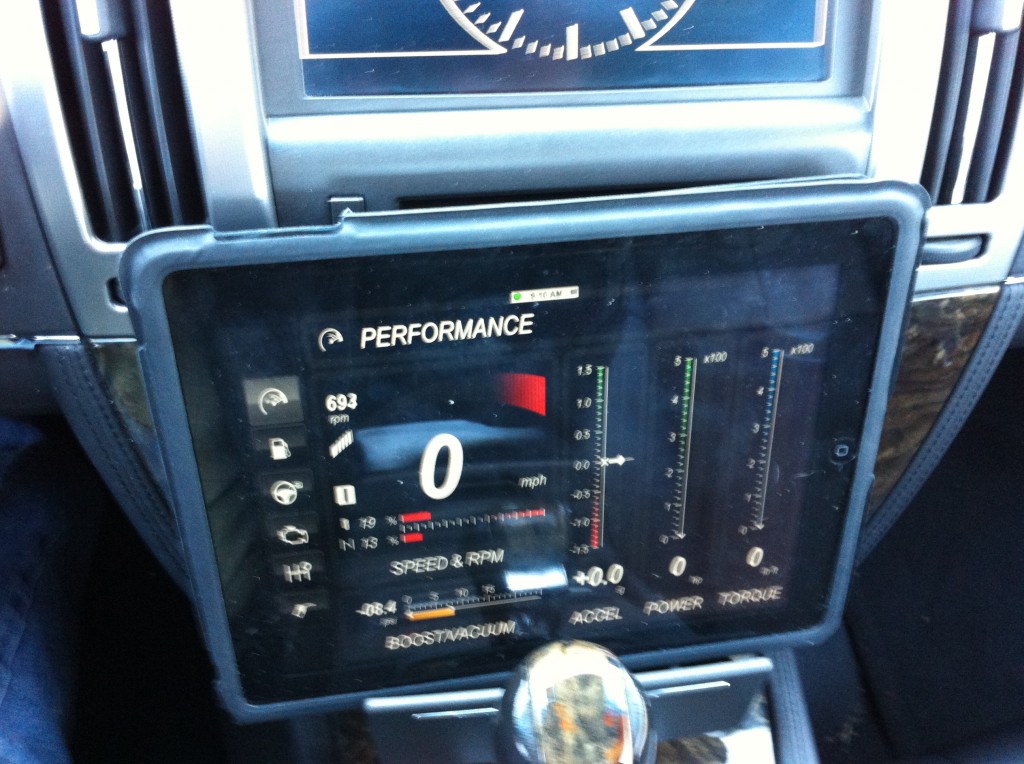
IMG_0534 IMG_0533 IMG_0532

So that all works per se, but I don’t see a way on the IPAD to display IAT2, nor do I see a way to specify a custom PID which would then allow it to be displayed.  Disappointing for a $49 IOS app.

Torque on the android platform apparently does offer custom PID display, but I have the IOS IPAD or IPhone.

DashCommand does allow customizable and downloadable dash designs from dashxl.net.  These may be created or edited using windows software which is free from that site.  There is also a repository of other user dash designs which may be downloaded.  I have not found a pre-designed dash that has what I am looking for — ambient, IAT1, and IAT2 similar to my HP Tuners display.
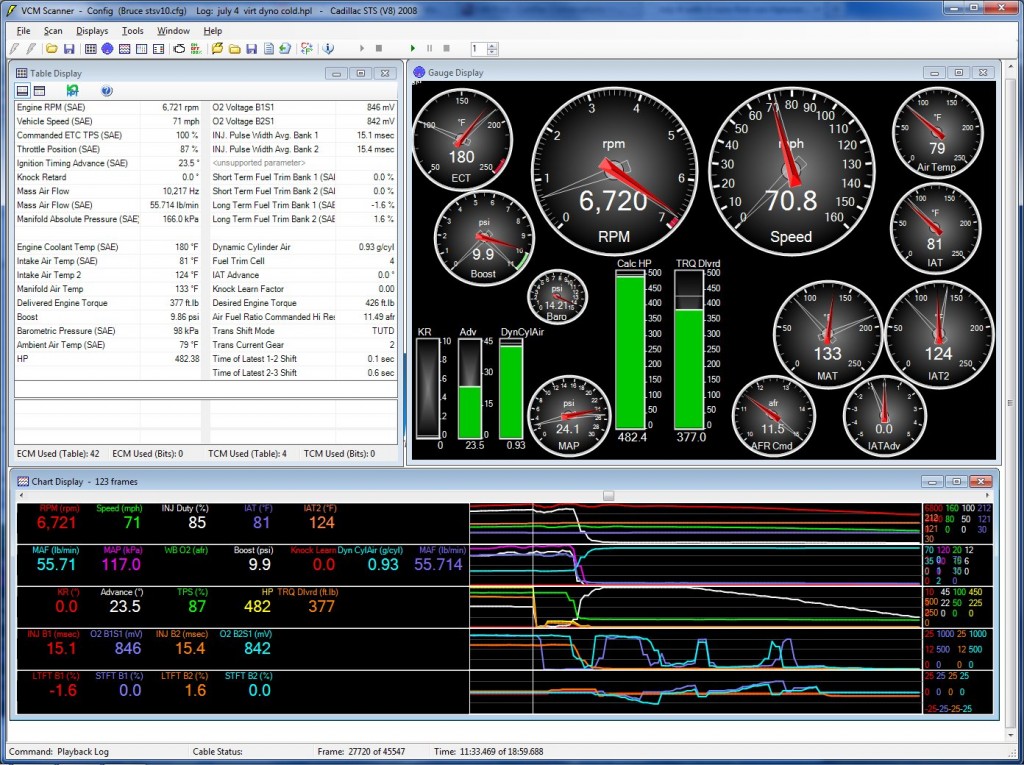
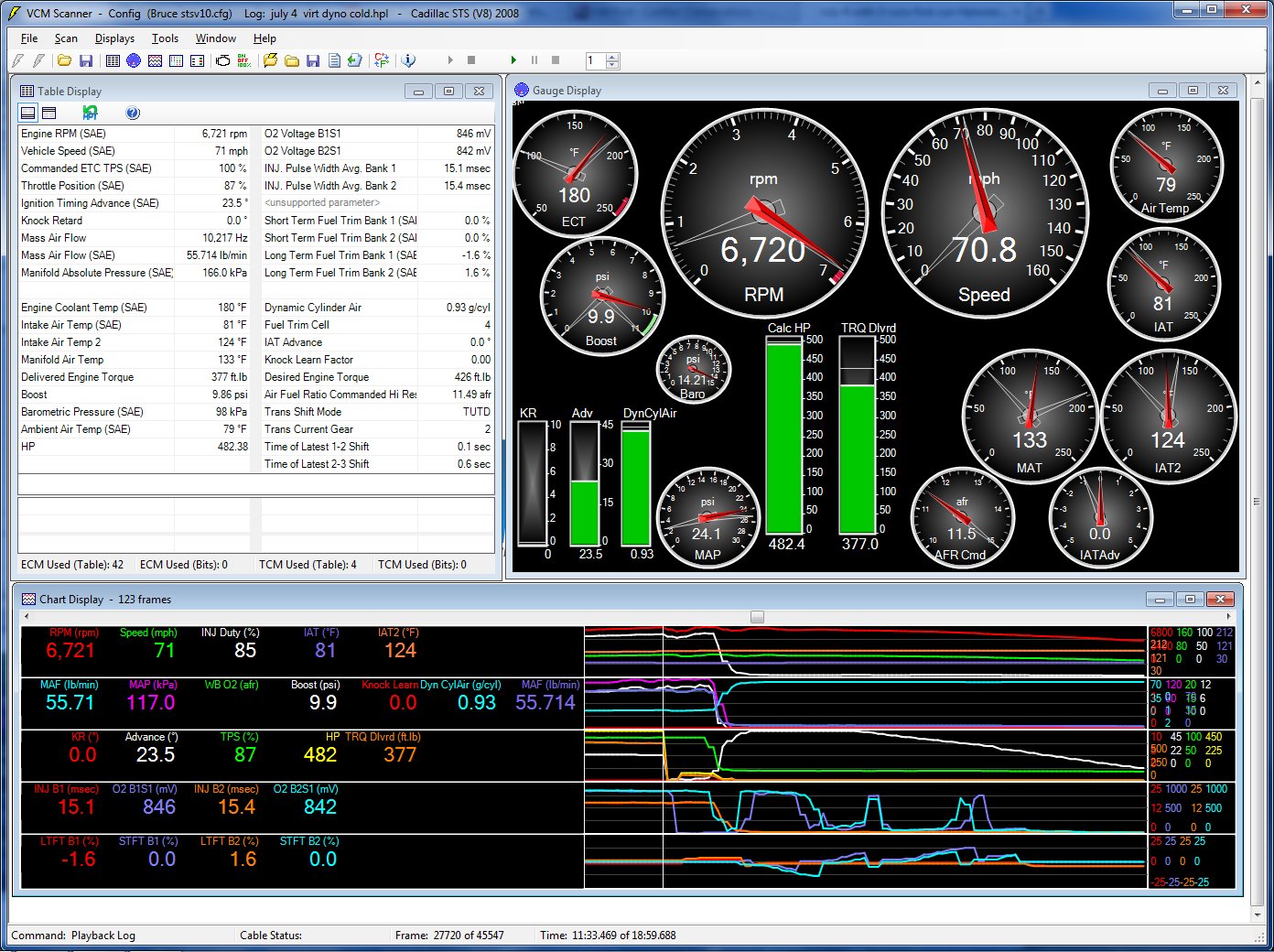
July 4 with 3 runs second run Hptuners

July 4 with 3 runs second run Hptuners

But I am hopeful that I can find one, or design one using the toolset that will look something like the key gauges in the upper right of the HPTuners display above.

If you have already solved how to display IAT2 on an IOS device please share!


UPDATE:

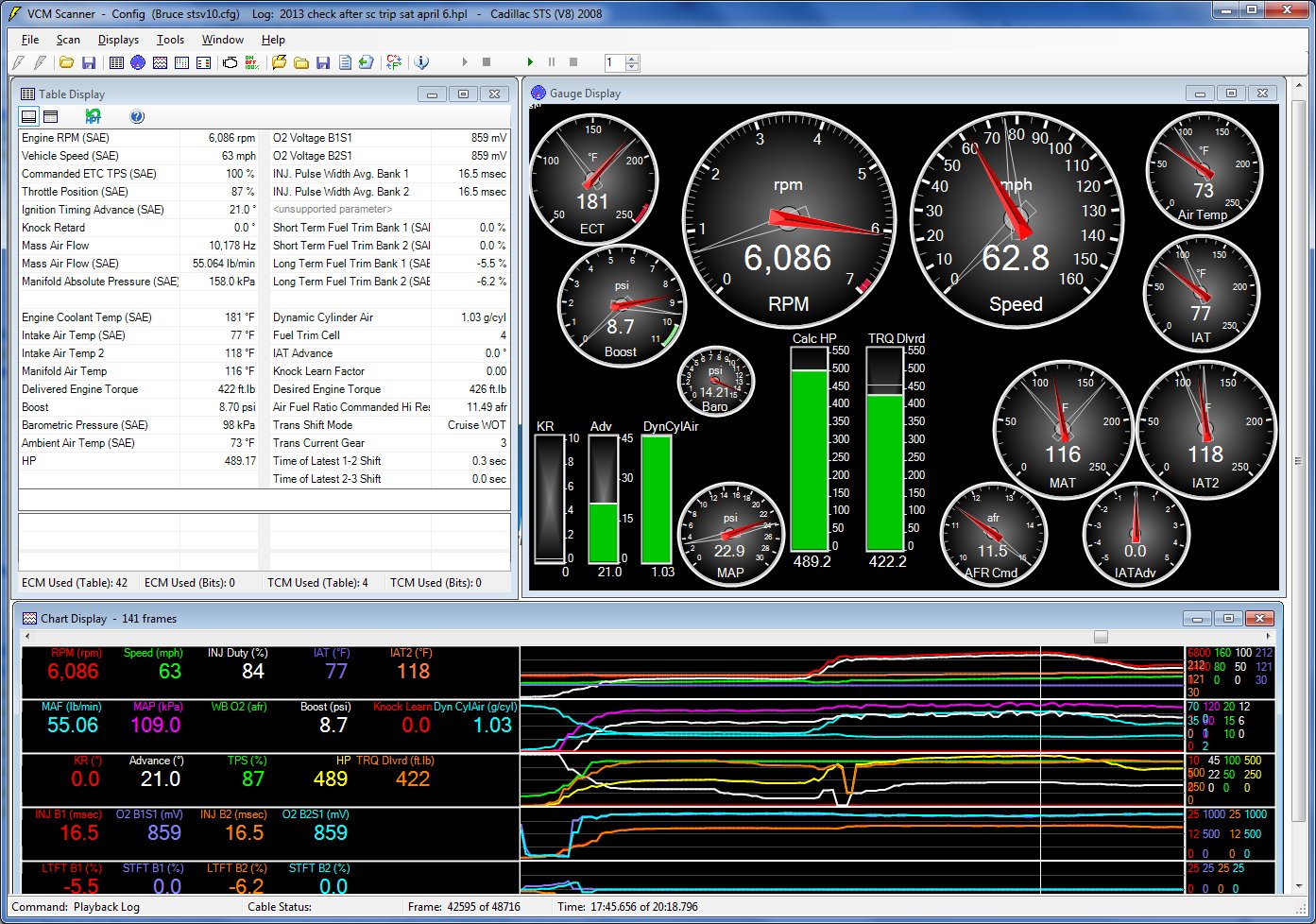
Here is a cruise and IAT2 scan today for IAT2s, at top of 2nd gear about to shift into 3rd.
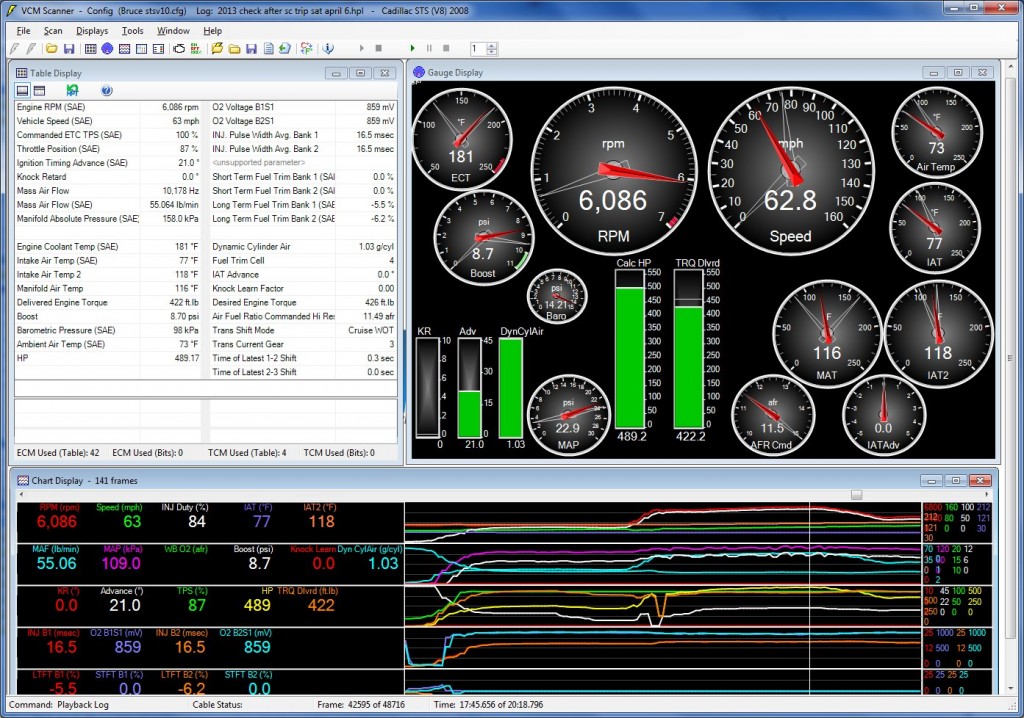
HP Tuners gauge output

HP Tuners gauge output

The IAT2s ranged from 111F to around 120F at different parts of the drive, which seems typical for my V and setup.  At this temp it is staying out of negative IAT advance, so good.

CaddyInfo Cadillac Chat: Learning Hangouts #Motorama #GmChat

Cadillac Chat in a Google+ Hangout?  Count me in!  Last evening we had our first CaddyInfo Cadillac Chat using Google+ Hangouts.

Cadillac Chat Video:

Using Google+ & Hangouts for Cadillac Chats

Google+ is Google’s version of Facebook or similar social media site.  They are different, but that’s the idea.  Google+ has many interesting features, and I am still learning how to take advantage of all of them.

Google+ Hangouts is a service that offers up to 9-way video conferencing with very little setup.  Grab your smart phone or webcam, log in, and you are set more or less.  You can also participate in a live Cadillac chat with just a mic & audio, or even with just joining and text chat.  I have also seen Readers interact by for example adding comments to the video feed in the forum and then we can respond in the live video.

Our chat started slowly (I should have gotten everyone set and working before I started the video broadcast) but once we got going we had a fun time.

We used the Google+ Event planner to plan the Thursday night CaddyInfo Cadillac Chat at 8 PM Central / 9 PM Eastern / 6 pm Pacific US time.  I was surprised that although it prompted us that ‘it was time’, the Hangout then had to be started manually.  Now that I know this, okay.

Hangouts on air is a feature that captures the live video conference and sends it to Youtube.  There people not in the live conference can watch the video live, and the entire conference is saved a short time after the end of the conference as a Youtube video for later viewing as above.  Using this feature I was able to embed the live video feed in a post on our CaddyInfo Forum so it was easy for Readers to access.

Improvements for next time

We had some first night issues — Mike never got video or audio running, but generally things went more or less as planned and we all had fun chatting about Cadillacs.

Hangout Toolbox to the rescue

Hangout Toolbox to the rescue

After the CaddyInfo chat was over I learned how to add and use a Hangouts App to add subtitles showing each person’s name and other info.  That will help viewers follow the conversation.

Summary — Cadillac Chat Accomplished!

Overall we all had a good time chatting — the key to good Video Chats is likely to have a great group of people in the chat — and plan to continue to do these weekly.

Find me on Google+:  Link

Schedule for CaddyInfo Cadillac Chats:  Thursday evenings at 8 PM Central Time